Students can use the Panopto button in any Moodle text editor to insert existing videos from their Panopto account, an uploaded video, or record and insert a new video.

Clicking on the button will open a pop-up window showing your Panopto folder for the course. You can choose a video from that folder, navigate to a different folder in Panopto, upload a video from your computer or device, or record a new video.
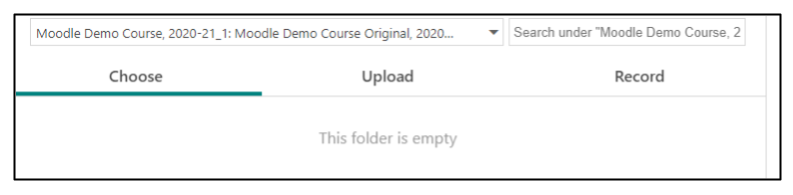
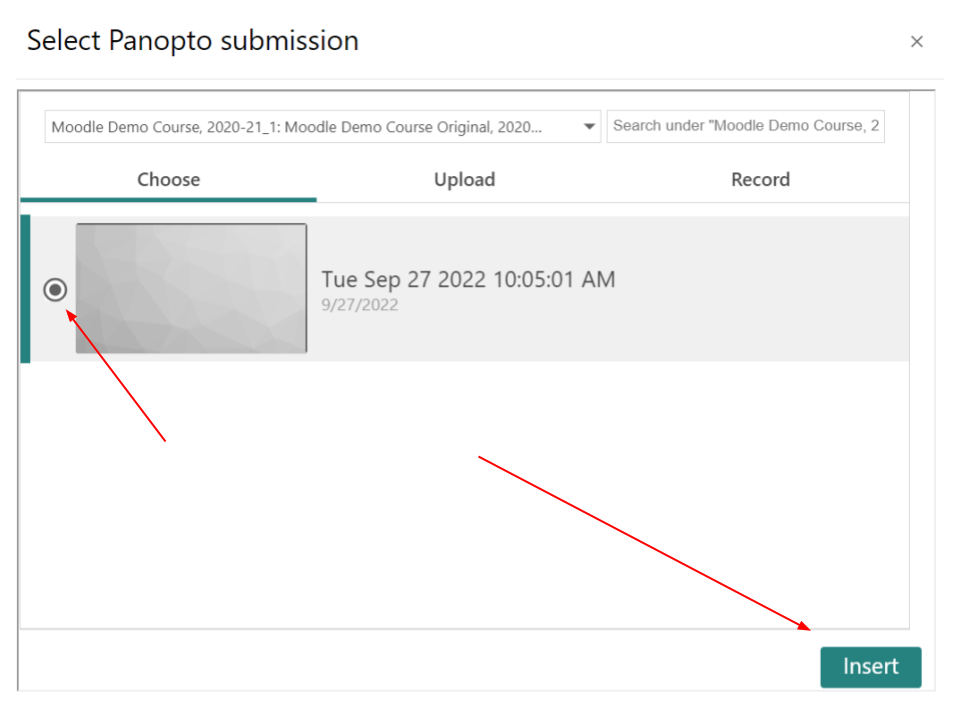
From the default Choose tab, you may navigate through your Panopto folders to locate and click on the desired video and click Insert to prepare it for submission.
Choosing Upload will allow you to drag and drop a video on to the window, or click on the window to bring up a file browser dialog box. Your video will be uploaded, and then you will click on Insert to prepare it for submissions.
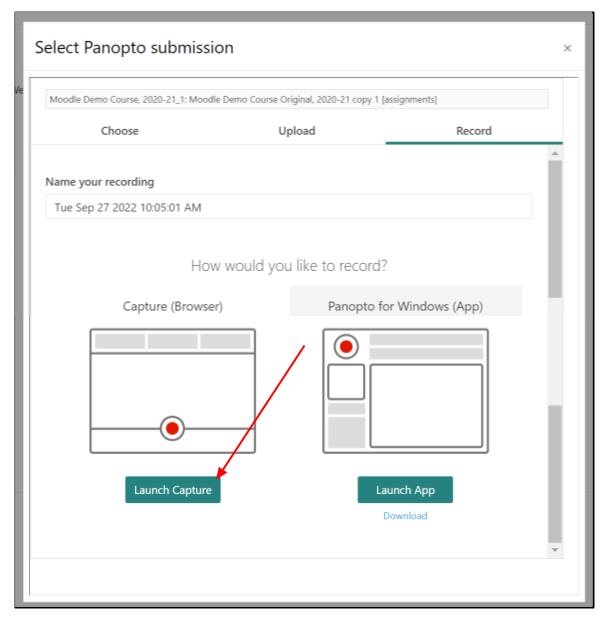
Choosing Record will open up the Panopto recording interface, with the option to record with the browser app, or the desktop application, if installed. Before you begin, you m ay give your recording an appropriate name, generally including your name in the title for easy identification by your instructor. You may also rename the video afteryou finish recording. In the majority of cases, you will want to click on Launch Capture to record from the Panopto browser app.
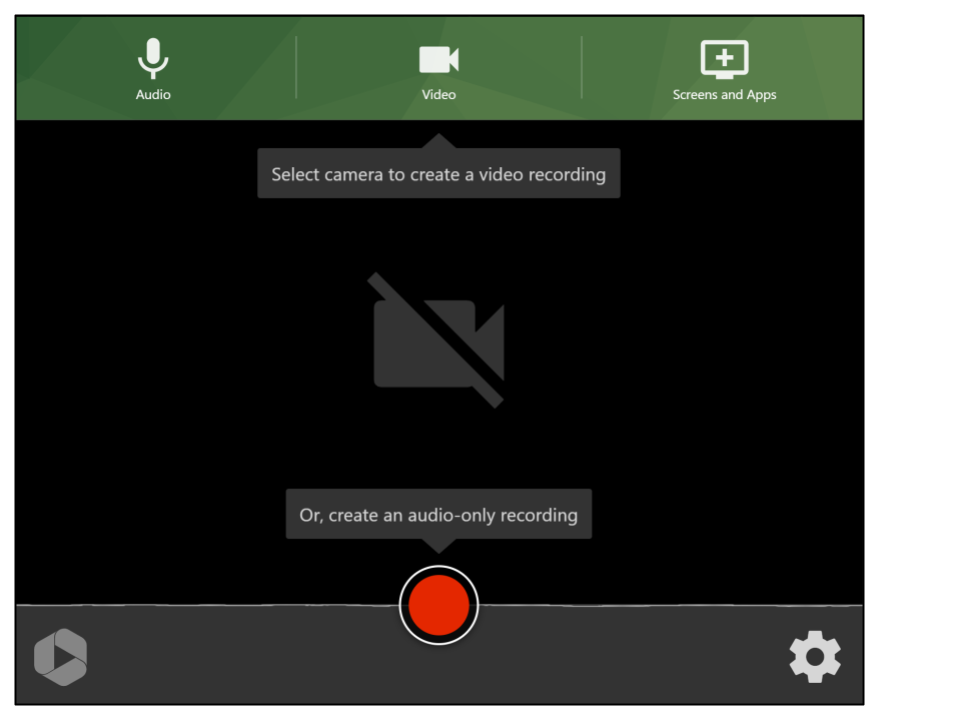
After launching the capture app, a new tab or window will open with the Panopto recorder interface, with icons to choose your audio and video input, as well as the option to share your screen, an app, or a browser tab. Press the record button to get a countdown to begin your recording.
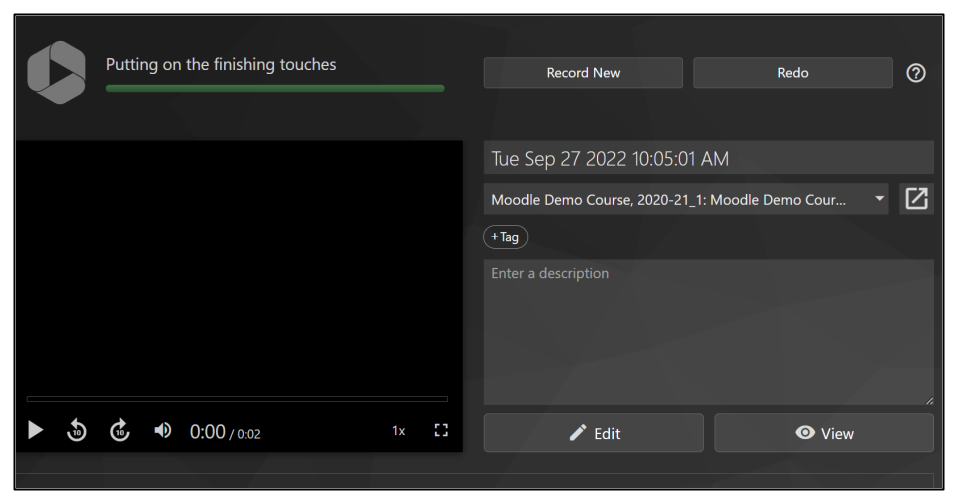
When you have completed your recording and pressed stop, you will be presented with the following screen, allowing you to preview the video, start over, record a new video, rename the video, choose a different folder, or edit the video. At this point, you can close the tab and return to the browser tab with Moodle.
Select the Choose tab and click on the recording you just created and then click on Insert.
From here, your newly recorded video will be inserted into the text editor window in your assignment, forum or quiz answer. Complete the submit/post process from there to finalize.